Installation
This page shows how to install vATIS, import the VATSIM Brasil profiles and set up your credentials. To operate the program during a session, see the Usage page.
Download and installation
Download the installer from the official vATIS website. Versions are available for Windows, macOS and Linux.
| System | Installation |
|---|---|
| Windows | Run the installer. vATIS is installed in %localappdata%\org.vatsim.vatis and a desktop shortcut is created. The installation folder cannot be changed. |
| macOS | Copy vATIS.app to the Applications folder. |
| Linux | Download the AppImage file and save it in any folder you like. |
Program updates
vATIS updates itself: when a new version is available, it is downloaded and installed when the program starts.
VATSIM Brasil profiles
In vATIS, a profile groups the ATIS stations of a region. VATSIM Brasil maintains one profile per FIR, already configured with:
- the ATIS stations of the FIR's aerodromes, with their frequencies;
- presets for each runway configuration;
- the text and voice message format, with the transition level calculated from the QNH;
- contractions, so names and abbreviations are read correctly by the synthesized voice;
- predefined NOTAMs and airport conditions for common situations, such as a closed runway.
The profiles ship with each FIR's sectorfile package and can also be downloaded here:
| FIR | File | Stations |
|---|---|---|
| Amazônica (SBAZ) | vATIS-Profile-SBAZ.json | SBEG, SBBE, SBCY, SBBV, SBRB, SBPV, SBSL |
| Brasília (SBBS) | vATIS-Profile-SBBS.json | SBBR, SBCF, SBGO, SBRP, SBYS, SBBU, SBBH |
| Curitiba (SBCW) | vATIS-Profile-SBCW.json | SBSP, SBPA, SBCT, SBFL, SBKP, SBGR, SBRJ, SBCG, SBGL, SBME, SBSJ, SDCO, SBMT, SBLO, SBBI, SBNF, SBSM |
| Recife (SBRE) | vATIS-Profile-SBRE.json | SBRF, SBTE, SBFZ, SBSG, SBNT, SBSV, SBPS, SBVT |
Tip
To save the file, right-click the link and choose Save link as....
Importing a profile
When vATIS opens, the profiles window is shown.
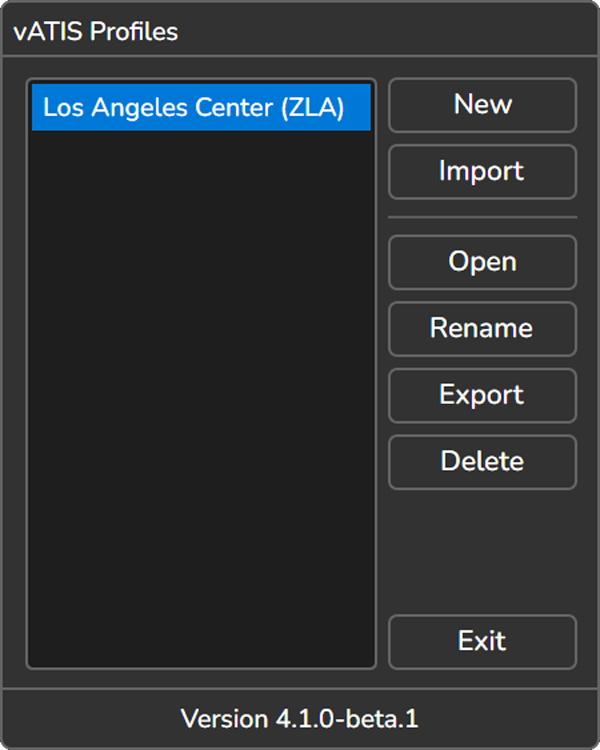
- Click
Importand select the FIR's.jsonfile. - Repeat for the other FIRs you control. Each one appears as a separate profile, for example FIR Curitiba (SBCW).
- To open a profile, select it and click
Open, or double-click its name.
The other buttons create (New), rename (Rename), export (Export) and delete (Delete) profiles. Deleting cannot be undone.
Automatic profile updates
The VATSIM Brasil profiles update themselves. Each file holds the address it is published at and a version number, and vATIS checks that address periodically. When a newer version is available, it is downloaded and replaces the installed one.
Attention!
Changes you make to the profile are overwritten at the next update. To fix or improve a profile (frequency, preset, contraction, NOTAM), open a suggestion in the ATC Portal repository. The files are in docs/files/vatis/.
User settings
Before connecting for the first time, open the profile and click User Settings, in the top left corner of the main window.
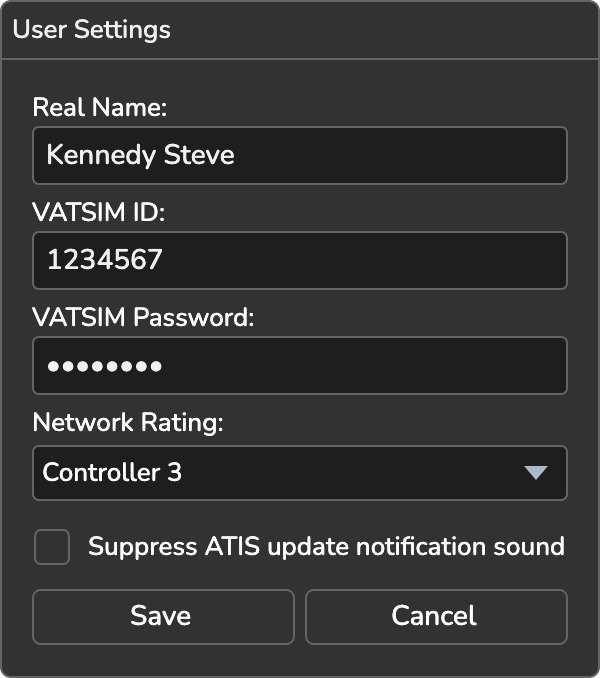
| Field | What to enter |
|---|---|
Real Name | Your name, as in EuroScope. |
VATSIM ID | Your CID. |
VATSIM Password | Your VATSIM password. |
Network Rating | Your controller rating. |
Mute own ATIS update sound | Mutes the update sound for the ATIS you publish. |
Mute shared ATIS update sound | Mutes the update sound for ATIS published by other controllers. |
Automatically fetch ATIS letter | Fetches the real-world ATIS letter (D-ATIS) on connection, at aerodromes where that service exists. |
Click Save to store the settings.
Where the files are
Profiles and settings are stored in the vATIS data folder:
| System | Folder |
|---|---|
| Windows | %localappdata%\org.vatsim.vatis |
| macOS | ~/Library/Application Support/org.vatsim.vatis |
| Linux | ~/.local/share/org.vatsim.vatis (hidden folder) |